Import Your Google Maps Saved Places into a Trip Itinerary
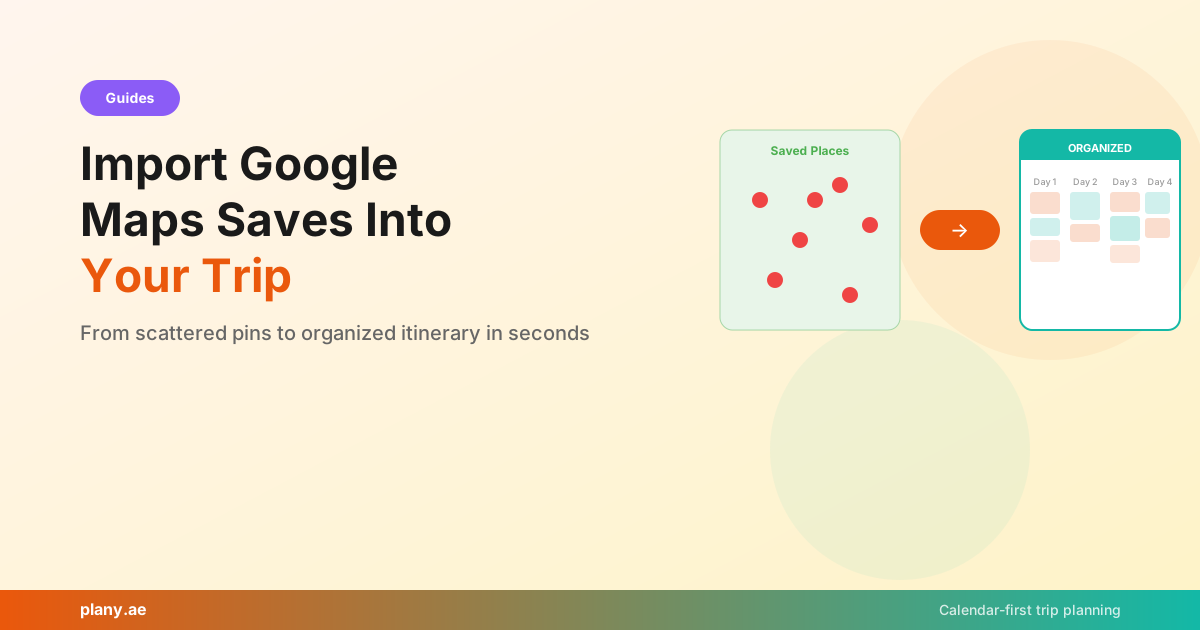
If you're anything like most travelers, you've been saving places to Google Maps for months — that ramen shop someone recommended on Reddit, the rooftop bar you saw on Instagram, the museum your friend said was unmissable. By the time your trip rolls around, you've got dozens of pins scattered across the map with no organization.
The challenge has always been getting those scattered saves into an actual trip plan. Copying them one by one into a spreadsheet or planning app is tedious. Most people just give up and wing it, scrolling through their Google Maps saves while standing on a street corner trying to figure out what's nearby.
Plany fixes this with a single import feature.
How Google Maps Import Works
The process takes about 30 seconds:
- Open Google Maps on your phone or desktop
- Go to your saved list — the one with all those restaurants, attractions, and spots you've been collecting
- Copy the share link for the list (tap the three dots → Share list → Copy link)
- Paste it into Plany — in your trip, use the import feature and paste the URL
- Done — every place from your list appears in Plany, ready to be assigned to specific days
Plany reads the list, extracts each place's name, location, and coordinates, and creates events for them. They show up as items that you can drag onto your calendar days. If you just want the practical steps, the Google Maps list import guide walks through sharing the link, importing it, and placing the pins on days.
From Scattered Saves to Organized Days
The real power comes after the import. You now have all your saved places visible alongside your trip calendar. You can:
Sort by location. See which places are near each other and group them on the same day. No more zigzagging across the city.
Assign by vibe. Put all the food spots on days where you want a relaxed, eating-focused experience. Stack the museums and cultural sites on days when you have more energy.
Balance your days. When you can see all your saved places against the calendar, you naturally spread them out instead of trying to do everything in the first two days.
Share with your group. Once imported, the places are on a shared calendar. Your travel partner can see everything and help organize.
Tips for Better Google Maps Lists
To get the most out of the import, organize your Google Maps saves a bit before your trip:
Use separate lists for different types. Create lists like "Tokyo Food," "Tokyo Sightseeing," and "Tokyo Shopping." When you import each list into Plany, you can assign them to appropriate days more easily.
Add notes when you save. Google Maps lets you add notes to saved places. Use them — "open late," "reservation needed," "free on Tuesdays." These notes transfer into Plany and help when you're scheduling.
Don't over-save. It's tempting to save every recommendation you see, but a list of 50 restaurants for a 5-day trip is overwhelming. Aim for roughly 2-3 options per meal slot, and you'll have plenty of flexibility without decision paralysis.
The Bridge Between Dreaming and Planning
There's a gap in most people's travel workflow. The dreaming phase — saving places, watching travel TikToks, reading blog posts — is fun and easy. The planning phase — organizing everything into a day-by-day schedule — feels like work.
Google Maps import bridges that gap. All those places you saved during the dreaming phase get pulled directly into the planning phase with zero manual entry. You go from "I have 40 pins on a map" to "I have 40 places ready to schedule" in one click.
From there, Plany's calendar view makes the organizing part visual and intuitive. Drag a restaurant to Tuesday dinner. Drop a museum on Wednesday morning. See that Thursday is looking empty and pull in a few more places.
Combine with AI for Even Faster Planning
If you have a lot of imported places and aren't sure how to organize them, try using Plany's AI integration. Connect ChatGPT or Claude and ask something like:
"I imported 25 places for my Tokyo trip. Can you organize them into a 5-day itinerary, grouping nearby places on the same day?"
The AI can look at your imported places, consider their locations, and suggest a logical day-by-day arrangement — which you can then fine-tune by dragging things around on the calendar.
Get Started
- Open Google Maps and copy your saved list's share link
- Sign up free at app.plany.ae
- Create a trip and use the import feature
- Watch your scattered saves turn into an organized itinerary
It takes less than a minute to go from Google Maps chaos to calendar clarity.
Explore how other travelers organize their trips at app.plany.ae/explore.
Plany Team
Writing about travel planning, AI-powered itineraries, and building better tools for travelers at Plany.
Start planning your next trip — free
Drag, drop, and organize your itinerary on a visual calendar. Add AI suggestions, photos, and share with friends.
Get Started FreeRelated posts

Get travel planning tips
Join our newsletter for trip planning guides, destination ideas, and Plany product updates.